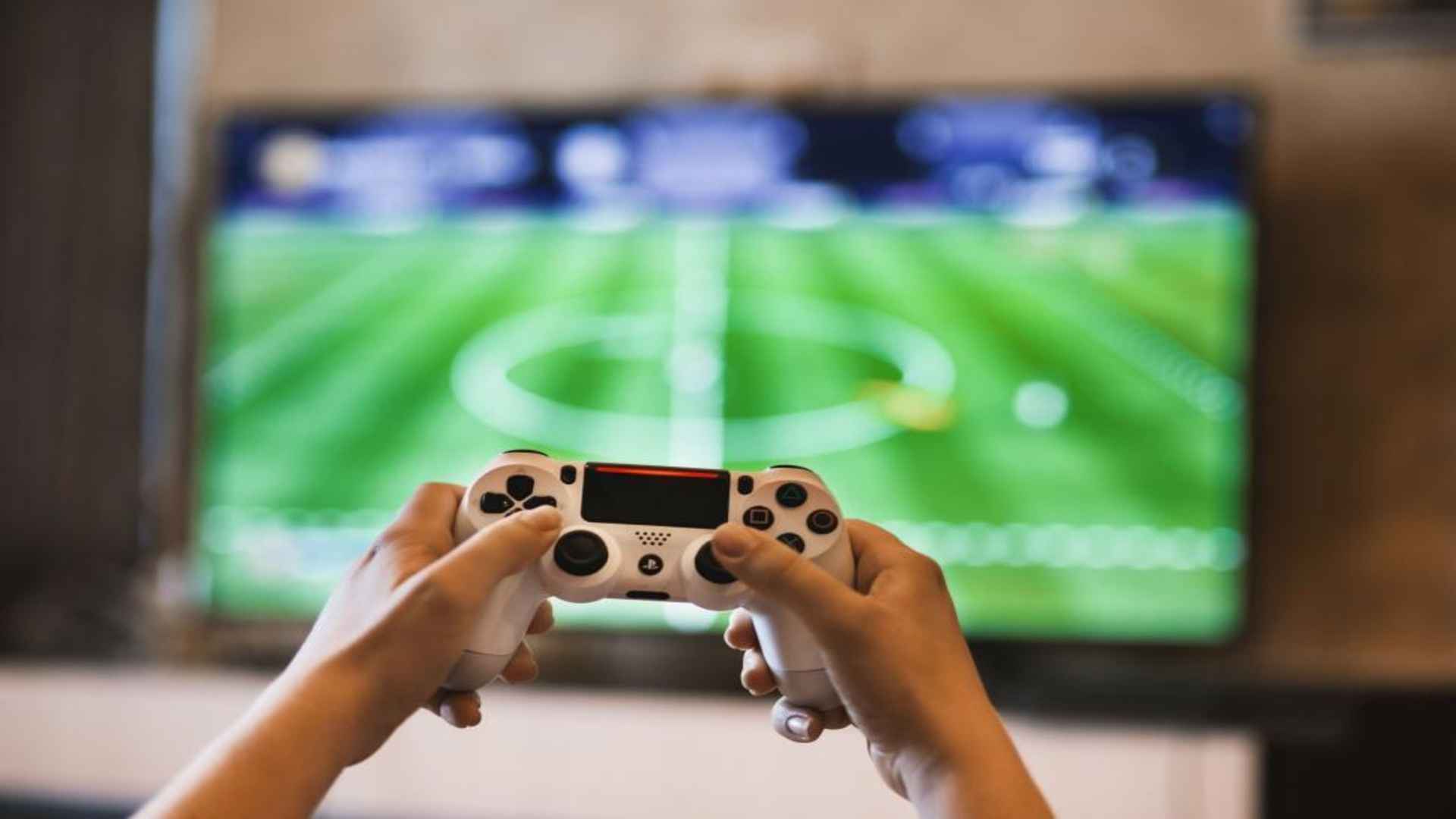
Setting up your gaming hardware properly ensures a smooth and uninterrupted experience from the very first moment. Connecting a DualShock 4 controller to your PlayStation 4 console is a foundational step that every gamer needs to master. Whether you are setting up a brand-new system or introducing a secondary controller for multiplayer sessions, the pairing process remains highly straightforward.
Establishing a Reliable Wired Connection
The most dependable method for linking your gamepad involves using a physical connection during the initial handshake. You will need a standard micro-USB cable that supports both power charging and data transfer capabilities. Plug one end of the cable into the front of the console and the other end directly into the port situated on top of the controller.
Once the physical link is securely established, press the circular PS button located in the center of the gamepad. The light bar on the back of the device should change color to indicate a successful sync with the hardware. You can now safely disconnect the micro-USB wire and enjoy your games entirely untethered.
Pairing a Secondary Controller Wirelessly
If you want to add a second input device without searching for extra cables, you can utilize the built-in system software configurations. Navigate directly to the settings menu on your console dashboard using your primary active input device. From there, select the devices section followed by the Bluetooth management option to scan for nearby peripherals.
On the secondary gamepad, press and hold both the Share button and the central PS button simultaneously for several seconds. The integrated light bar will begin flashing rapidly to indicate that the device has entered its official pairing mode. Choose the newly detected gamepad from the list on your television screen to complete the wireless registration process.
Troubleshooting Synchronization Difficulties
Sometimes users encounter frustrating connectivity errors where the light bar flashes white or amber without actually linking to the console. This issue frequently stems from using a cheap charging cable that lacks the necessary data pins required for hardware synchronization. Swapping to a high-quality data-capable USB cord often resolves the problem immediately.
If a new cable does not solve the issue, resetting the internal firmware of the controller is highly recommended. Locate the tiny reset hole situated near the top-right screw on the backside of the gamepad housing. Use a small paperclip to press the internal button down for five seconds before attempting the standard pairing sequence once again.
Managing Multiple Gaming Profiles
Connecting multiple controllers allows friends and family members to jump into local co-op titles seamlessly. Each connected gamepad must be assigned to an independent user profile or an anonymous guest account during the login prompt. This system prevents button conflicts and ensures that custom controller layouts remain perfectly preserved for individual players.